> For the complete documentation index, see [llms.txt](https://redttg.gitbook.io/moss/llms.txt). Markdown versions of documentation pages are available by appending `.md` to page URLs; this page is available as [Markdown](https://redttg.gitbook.io/moss/getting-started/readme.md).
# Quickstart
Installation and cloud connect
## Installation
There are 3 main ways of running Moss.
The first is to run it directly from the source code, check [Development and contribution](/moss/development-and-contribution.md).
The other is to grab the executable from the [releases page](https://github.com/JustRedTTG/moss-desktop/releases/) and run it on your respective system.
### The installer
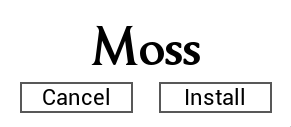
The second way is to use Moss in portable mode, just run Moss and click cancel on the installer screen. You can do this to try Moss.
\
Finally if you want to install Moss, simply click install on the installer screen.
> If you are using a custom cloud like **rmfakecloud** it is recommended to edit the `config.json` file (located in the same directory as moss.bin after initially running it) Before installation, change both fields `uri` and `discovery_uri` to your custom cloud's url, for example\
> `https://rmfakecloud.example.com/` During the installation this config file will be copied and you'll be able to use Moss with your custom cloud.
> On linux you will need to run Moss with sudo to install it. Then you can use the `moss` command to run it with or without sudo
The Moss installer screen
## Initial Sync
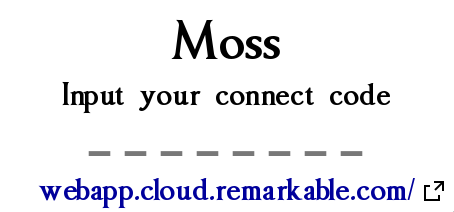
It's time to sync to your cloud for the first time. After installing or setting up Moss and running it, you will see a screen like this:
The Moss connect code screen
> Keep in mind that the first time you connect Moss will sync all the information about your documents to your system. **It will not download document data**. This first sync may take some time depending on the amount of documents you have. Do not worry if it takes a while. If it freezes then you can report it as an issue.
After getting your **connect code** from remarkable, which you can do by clicking on the hyperlink below the prompt, you can type or paste into Moss, it will start attempting a connection instantly.\
This is indicated by a dimming of the screen.
\
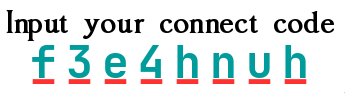
If Moss is successful it will start loading, if the connection wasn't possible for some reason or another, you will see the code underlined with red, erase it and type a new code